A quick tour
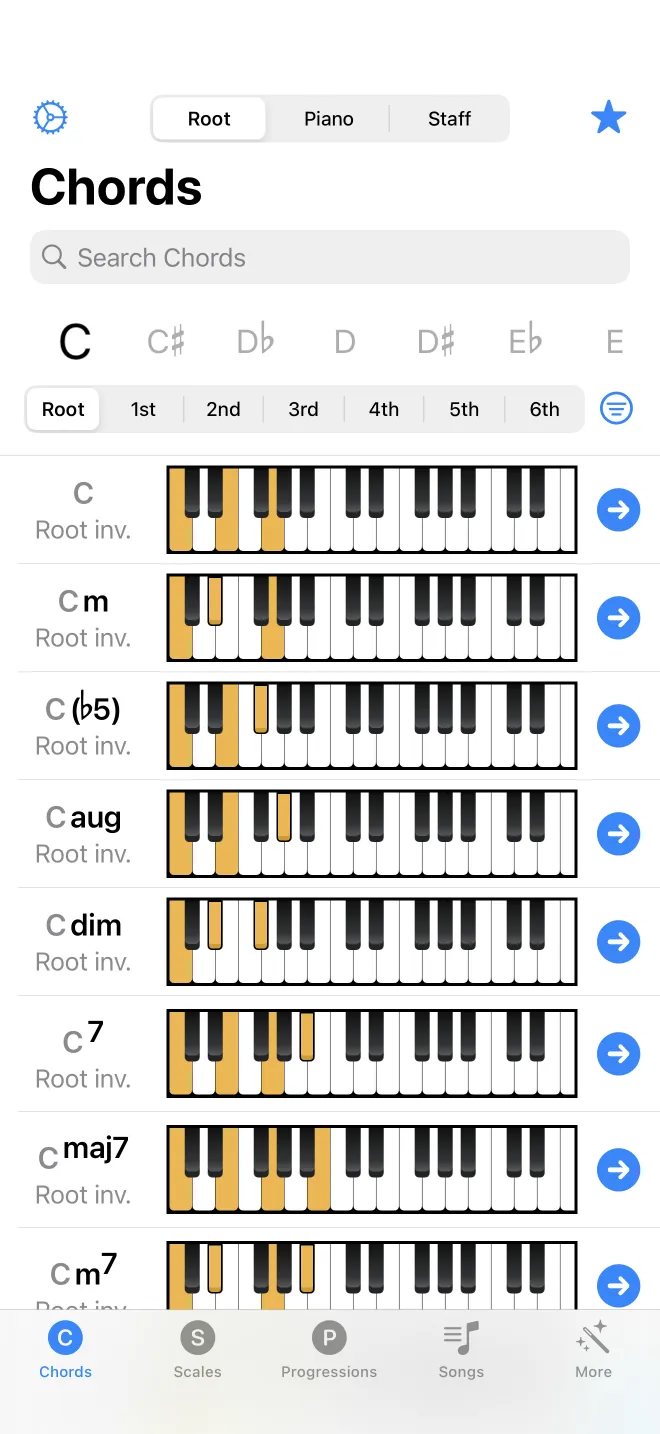
The app is organised into five tabs along the bottom of the screen. Each tab is a place to look something up and play it. This page describes what each tab holds and how the screens work, so the rest of the manual can stay short.
The five tabs
The app opens on the Chords tab. Chords and Scales both work as a filtered list: you set a root note and a type at the top, and the results below update to match. Progressions is for assembling a sequence of chords and playing it back. Songs is a composer for arranging chords into a full piece. More collects the rest, including the circle of fifths, key signatures, chord shapes, the practice exercises, and the Settings screen, which is reached with the gear button in the top corner.
How the screens work
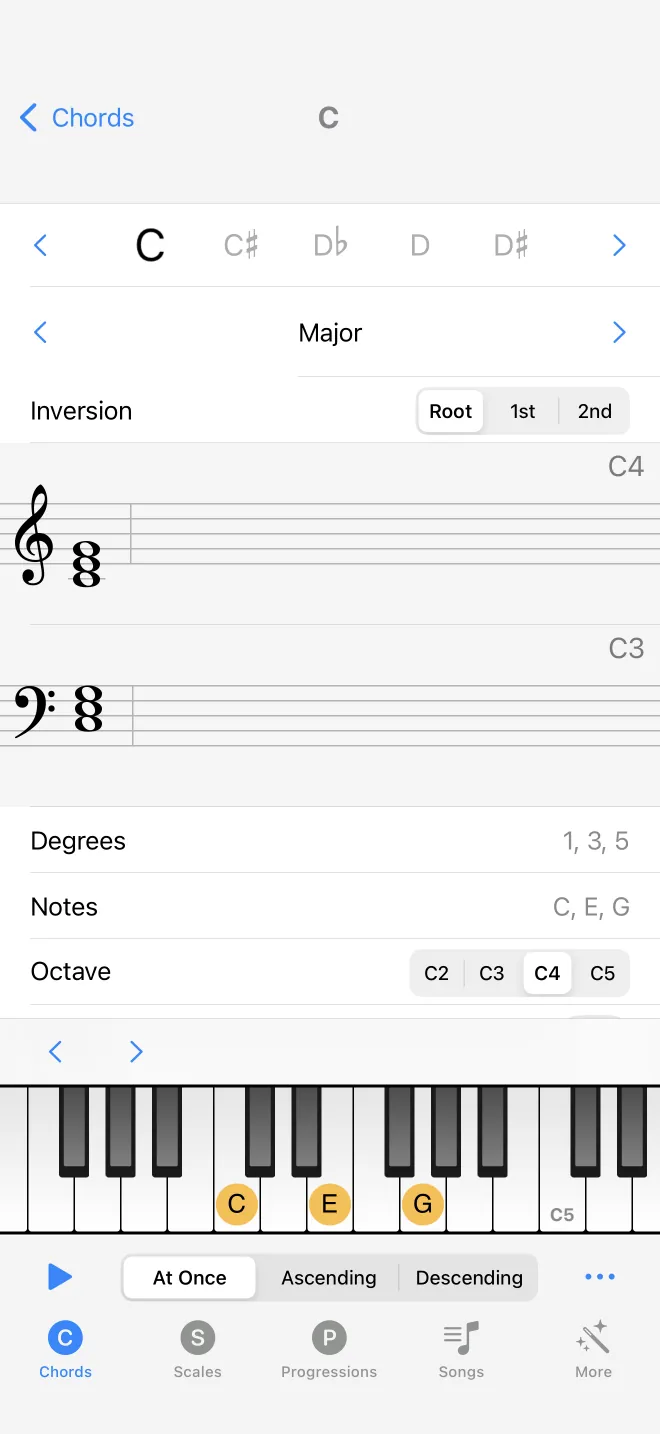
Chords, scales, and progressions share one layout. Whatever you select is drawn on a piano keyboard and on a musical staff at the same time. The keyboard shows which keys to press; the staff shows the same notes in standard notation. A play button sounds the notes, and the Autoplay setting plays each item the moment you select it. Tapping a result opens a detail screen with the same keyboard and staff, plus controls specific to it, such as inversions for a chord or fingerings for a scale.
The next page walks through this with a single chord.