Chord details
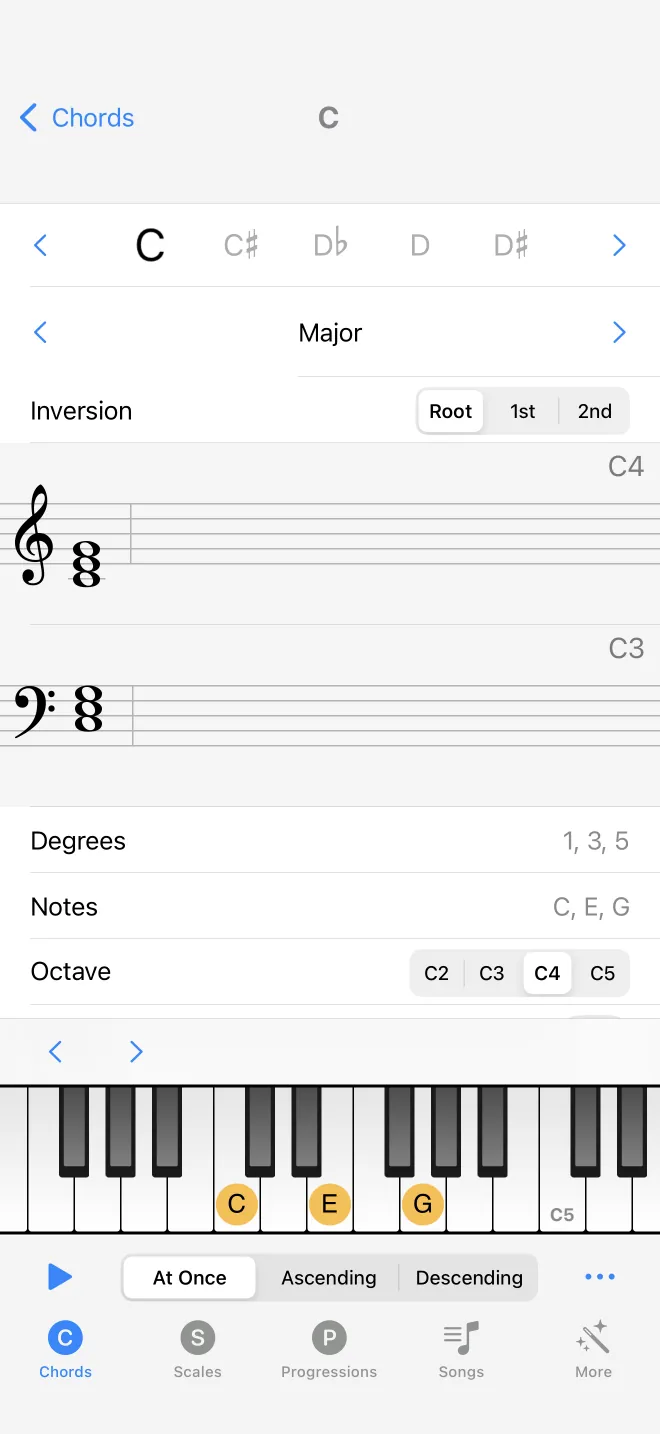
Tapping a chord opens its detail screen. Everything about one chord is on this page: its notes, how it looks on the staff and the keyboard, and controls to change it and play it. Here is what is on the screen and what you can do.
Change the chord in place
Near the top are pickers for the root note and the chord type, each with previous and next arrows to step through them one at a time. Below is the inversion control, and further down an octave control from C2 to C5. Change any of these and the whole screen updates, so you can explore variations of a chord without leaving the page.
See it four ways
The same chord is shown as its note names, as scale degrees relative to the root (for example 1 3 5), on the treble and bass staves, and on the piano keyboard fixed along the bottom. The keyboard scrolls left and right with the arrows above it. Tapping a note on either staff plays that note on its own.
Play it
The play button in the bottom bar sounds the chord and turns into a stop button while it plays. Next to it, the order control sets how the notes sound: together (harmonic), ascending, or descending. The loop toggle in the list repeats the playback until you stop it.
Copy, export, and note spelling
The menu in the bottom bar copies the chord, exports it as a MIDI file, and for many chord types opens a reference page about the type. When a note has a second spelling, such as C sharp and D flat, a button in the top bar switches between the two.